
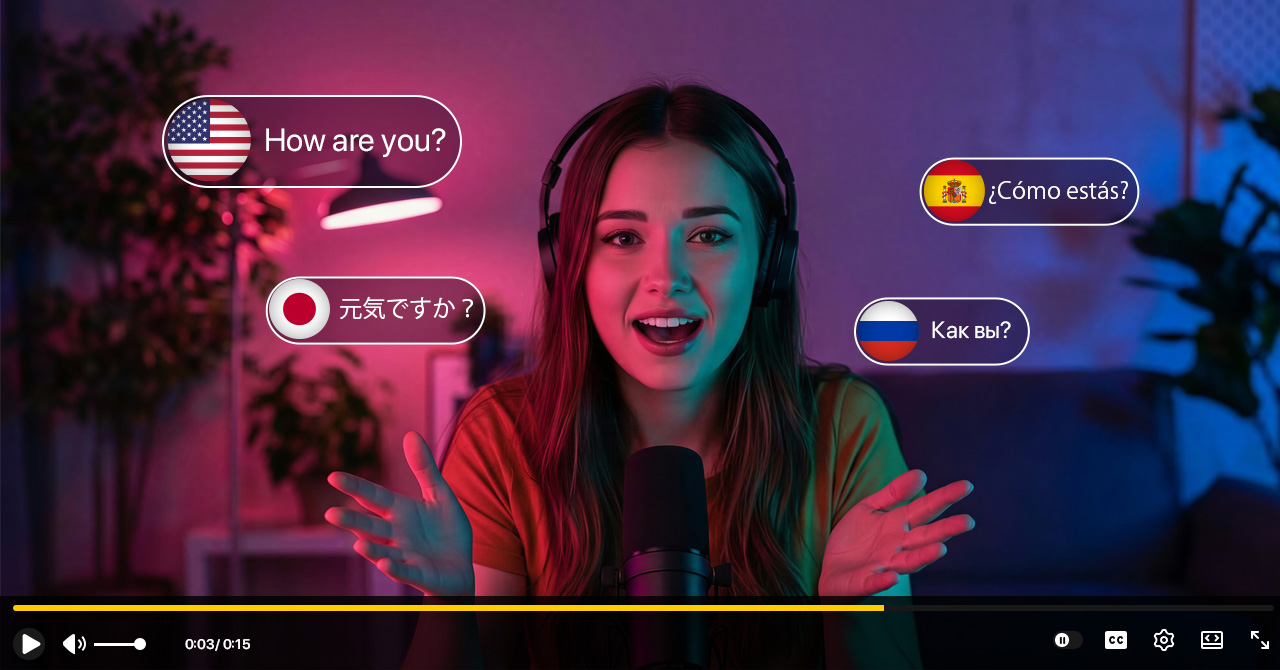
You've spent hours scripting, filming, and editing your latest YouTube video. It's perfect. But the moment you hit publish, you are limiting yourself to only one audience: those who speak your language.
Did you know that over 80% of YouTube's views come from outside the United States?
Top creators like MrBeast have cracked the code to explosive growth: Video Localization. By dubbing their content into Spanish, Portuguese, Hindi, and more, they've multiplied their views by millions.
In the past, this required hiring expensive voice actors. In 2025, you can do it yourself in minutes using AI.
Here is your step-by-step guide on how to translate your YouTube videos to any language using Genve.ai, and how to upload them correctly using YouTube's Multi-Language Audio feature.
Why Subtitles Are No Longer Enough
For years, creators relied on closed captions (CC). While subtitles help, they have a flaw: they require reading.
In the era of TikTok and Shorts, attention spans are short. Viewers prefer to watch and listen, not read.
- Subtitles: Split attention between text and visuals.
- AI Dubbing: Keeps 100% of the viewer's attention on your content.
Using an AI Video Translator like Genve.ai not only translates the words but also clones your voice and syncs your lip movements, making it feel like you originally spoke that language.
Step-by-Step: How to Translate Your Video with Genve.ai
Ready to go global? Follow these simple steps.
Step 1: Get Your Video URL or File
You don't need raw project files. You can simply copy the link of your existing YouTube video, or upload an .mp4 file directly from your computer.
Step 2: Upload to Genve.ai
Go to Genve.ai and create a new project.
- Paste the YouTube link or drag and drop your file.
- Pro Tip: Genve supports high-quality exports, so ensure your source video is clear (1080p or 4K recommended).
Step 3: Choose Your Target Languages
This is where magic happens. Select the languages you want to expand into.
- Spanish (LATAM): Great for massive viral potential.
- Hindi: Perfect for tech and education channels targeting India.
- Japanese/German: Excellent for high-CPM (revenue per view) markets.
The "Genve Advantage": Make sure to enable Voice Cloning. Genve will analyze your voice tone and generate the translated audio using your voice signature, not a generic robot.
(Optional: Enable Lip-Sync if you want the mouth movements to match the new language perfectly—highly recommended for on-camera talking heads).
Step 4: Review and Edit
AI is smart, but you are the creator. Genve.ai provides a simple editor where you can check the translation script.
- Does the translation capture the right slang?
- Is the timing correct?
You can make quick text edits, and the AI will regenerate the audio instantly.
Step 5: Export Your Translated Video
Once satisfied, click Export. You will get a fully dubbed video file.
How to Upload Multiple Languages to ONE YouTube Video
You could create a separate channel (e.g., "MyChannel Spanish"), but YouTube now allows Multi-Language Audio (MLA) tracks on a single video. This aggregates all views into one counter!
Here is how to set it up:
- Go to YouTube Studio.
- Click on Subtitles in the left menu.
- Select the video you want to edit.
- Click "Add Language" and select your new language (e.g., Spanish).
- Under the "Audio" column, click Add.
- Upload the audio file you generated with Genve.ai.
- Note: If you export a video file from Genve, you can easily extract the MP3 audio track using any simple converter or editing tool.
- Publish.
Now, when a viewer from Mexico clicks your video, YouTube will automatically play the Spanish audio track. Magic!
3 Pro Tips for Going Global
1. Don't Forget the Title and Description
Translating the video is only half the battle. You need people to click it.
In YouTube Studio's Subtitles section, make sure to add the Title & Description in the target language. This ensures your video shows up in search results for "Cómo hacer..." (How to make...) instead of just English queries.
2. Start with One High-Impact Language
Don't try to do 20 languages at once. Look at your YouTube Analytics -> Audience -> Top Geographies.
Do you see 5% of viewers from Brazil? Start with Portuguese. It's the lowest hanging fruit.
3. Use Lip-Sync for Higher Retention
If your video features your face (talking head), bad dubbing can look uncanny. Users might click away if the lips don't match the sound.
Genve.ai's Lip-Sync technology solves this by visually altering the video frames to match the new spoken words. This small detail can increase average view duration significantly.
Conclusion
The internet is global, but your content doesn't have to be stuck in one language.
With tools like Genve.ai, you no longer need a budget like MrBeast to get results like MrBeast. You can clone your voice, sync your lips, and reach millions of new viewers—all in a few clicks.
Ready to break the language barrier?
Click here to translate your first YouTube video for free with Genve.ai →